Text to Video Generator: Turn Prompts into 20-Second Clips
Turn a prompt into a clip with our text to video generator. Describe a shot and it returns up to 20 seconds at 720p or 1080p, with framing, motion and synchronized audio in one pass. The FLUX 3 Max model renders it on fal, credits are charged per second, and the cost is shown before you generate.
🎁 6 credits for a 5-second 720p FLUX 3 Max draft · 39 credits for 20 seconds at 1080p
No videos generated

Text to video with FLUX 3 Max · 5–20 second clips · 720p and 1080p · eight aspect ratios · native audio · MP4 delivery · Black Forest Labs on fal
What Is This Text to Video Generator?
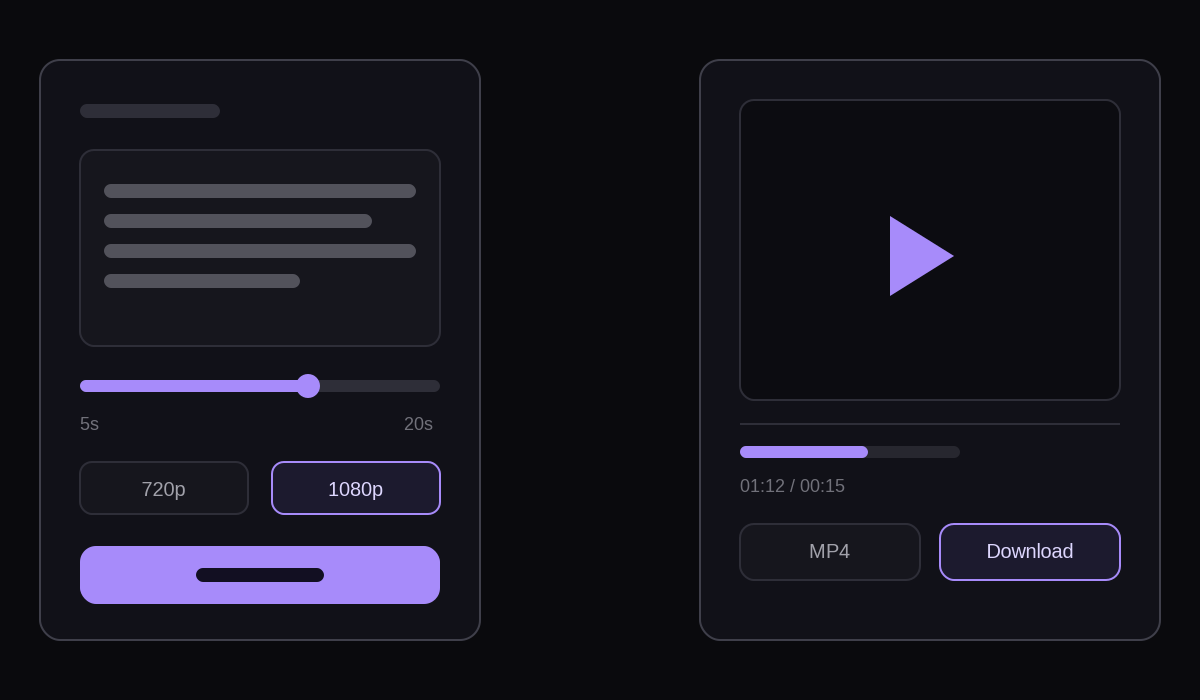
Our text to video generator is built on FLUX 3 Max, Black Forest Labs' text to video model, served through the fal queue API. Earlier text to video models stop at four or eight seconds; this text to video tool renders 5 to 20 seconds in one-second steps, so one run carries a full scene. It outputs 720p by default with an optional 1080p upscale, generates audio with the picture, and supports eight aspect ratios.
Clips up to 20 Seconds
This text to video generator lets you choose 5 to 20 seconds in one-second steps. Longer clips hold camera moves and scene beats that four-second generations cut off, which is why 10 to 15 seconds is the usual sweet spot for social posts.
Native Synchronized Audio
Audio is generated with the video, so footsteps, ambience and on-screen action stay in sync. Turn sound off when you plan to dub the clip or score it yourself — a silent text to video render gives you a clean plate.
720p and 1080p Output
Every text to video run with FLUX 3 Max returns an MP4 at 720p, with an optional 1080p upscale for client delivery or large screens. Resolution changes the price per second, so you can draft cheaply and re-render winners in full quality.
Eight Aspect Ratios
The generator frames eight ratios — auto, 21:9, 2:1, 16:9, 4:3, 1:1, 3:4 and 9:16 — instead of cropping a fixed 16:9 render. Subjects stay centred whether the target is a cinema bar, a square post or a vertical story.
Why Use a Text to Video Generator
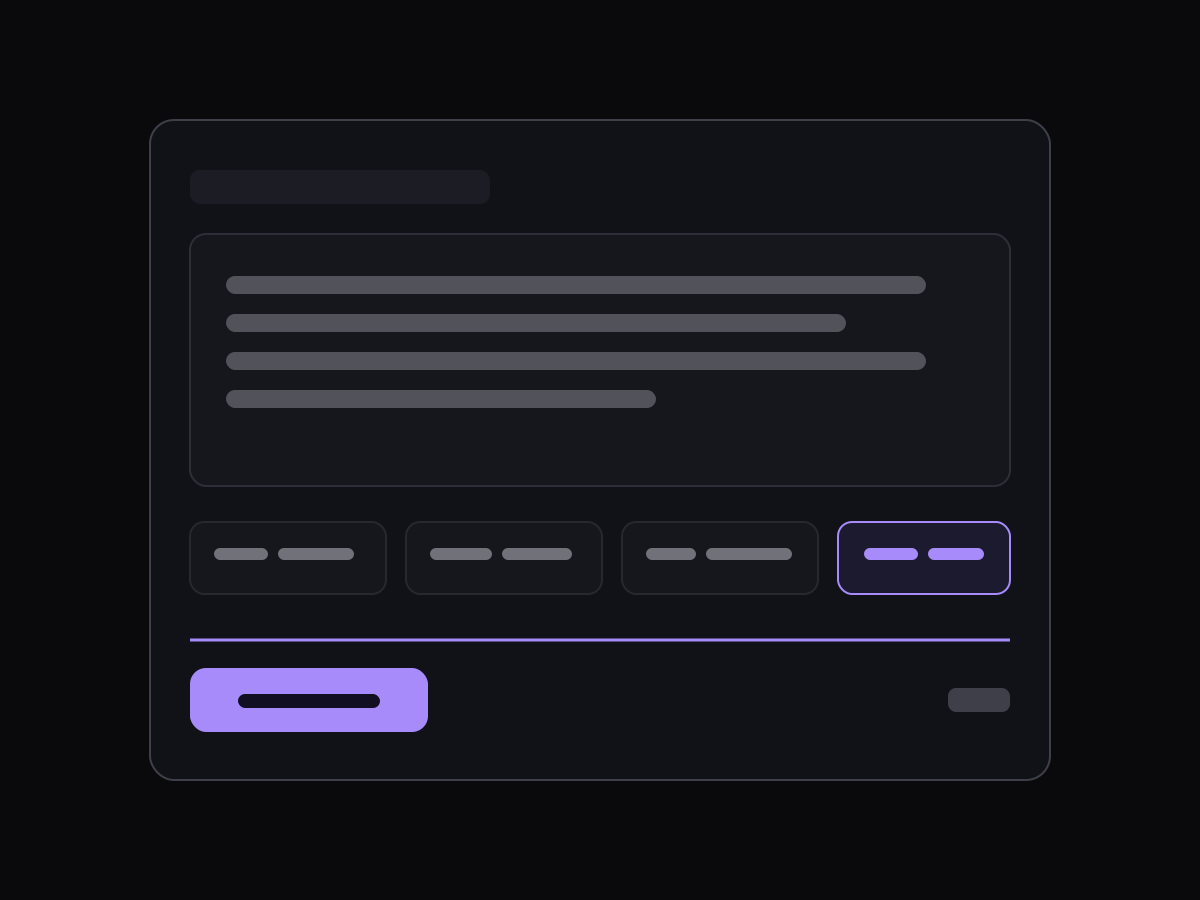
Six things that decide how a text to video run fits your workflow — what it holds, what it costs, and what you get back.
How Text to Video Works
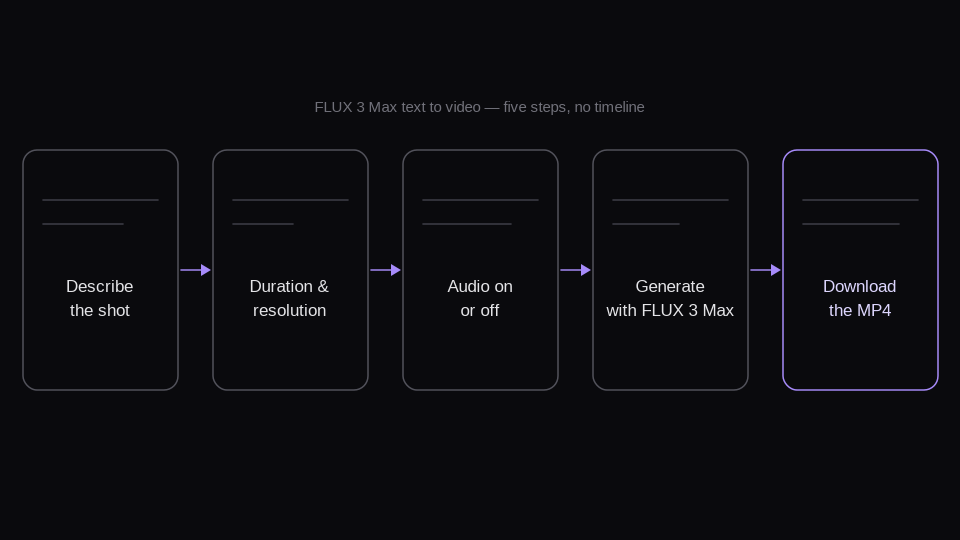
Describe the shot, set duration and resolution, decide on audio, generate, then download the MP4. Every step is yours to trigger, and nothing runs on a timeline you cannot see.
Describe the Shot
The first paragraph you write is already a text to video brief: name the subject, the action, the camera move and the light. A prompt like a red fox trotting through snowy pine forest, slow tracking shot, soft morning light gives the model enough structure to produce a usable take first time.
Set Duration, Resolution and Ratio
The easiest way to test a cheap draft before committing to a long render is to start at 5 seconds and 720p; once a text to video take works, move to 10 or 20 seconds for a full scene and switch to 1080p for delivery.
Generate and Download
Submit the prompt and the task runs on fal's queue. The page polls for progress, shows the finished clip in the preview panel, and lets you play it back and download the MP4.
Where Your Text to Video Clips Go
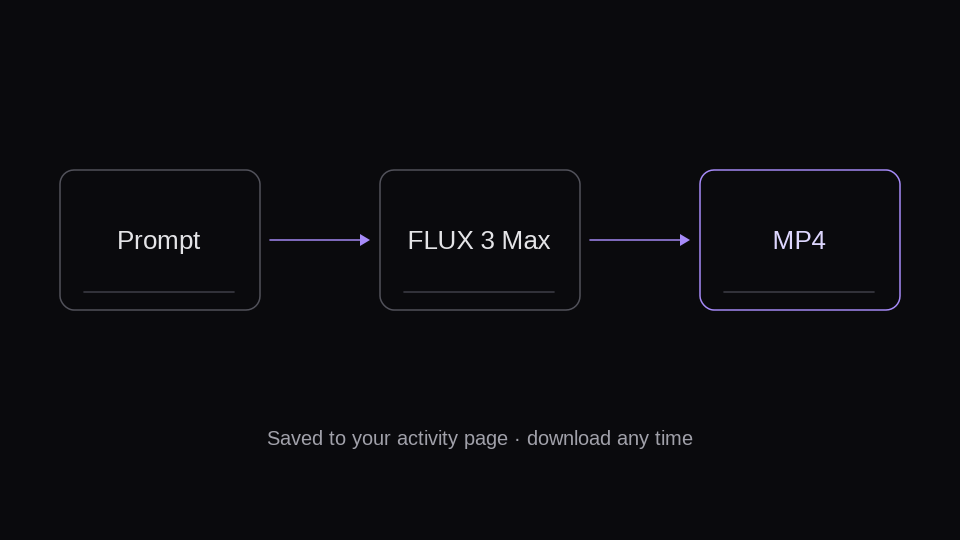
Prompts and finished clips are stored so you can review them later. Open your activity page any time to play back or re-download a text to video clip. What we keep, and for how long, is written down in our privacy policy.
Prompts Stay With Your Account
Each prompt is tied to the task that produced your clip, so you can see what was asked for and what came back.
Clips Are Saved to Activity
Every finished text to video clip lands in your activity page, where you can play it back or download the MP4 again later.
You Keep the Rights
You keep the rights to what you create. The terms of the underlying model are listed in our terms of service.
How to Use Text to Video
Four steps from sign-in to a downloadable clip:
Write the Prompt
Sign in with credits in your account, then describe the shot you want the text to video model to render: subject, action, camera behaviour and light.
Choose Duration and Resolution
Pick 5 to 20 seconds and 720p or 1080p. The credit cost updates as you change the settings, so a text to video draft never costs more than you expected.
Decide on Audio
Leave audio on for ambience that follows the picture, or turn it off when you plan to add your own voice-over or music.
Generate and Download
Send the prompt, wait for the queue, then play the result and download the MP4 from the preview panel.
Key Text to Video Features
Six capabilities of this text to video generator powered by FLUX 3 Max, ready right now.
Text to Video From a Prompt
Turn a written shot into a clip, no keyframes or timeline.
Clips of 5 to 20 Seconds
A single text to video run renders in one-second steps, long enough to carry a full scene.
Native Audio, On by Default
Sound is generated with the picture and stays in sync with the action.
720p and 1080p Output
Draft in 720p, then upscale the take you keep to 1080p for delivery.
Eight Aspect Ratios
Frame vertical, square and widescreen clips before the render.
Per-Second Credit Pricing
Credits are charged by output length, with the cost shown in advance.
Get Text to Video Updates
New models, new capabilities and practical prompting notes, sent occasionally.
Frequently Asked Questions About Text to Video
What to know before you spend credits on text to video.
Can't find what you're looking for? Contact our customer support team
Generate Your First Text to Video Clip
Describe a shot, choose a duration and let the FLUX 3 Max text to video generator render motion, framing and audio in one pass. Start with a 5-second 720p draft, then upscale the take you keep.